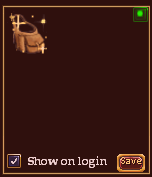
This is a custom window that simplifies access to just your first bag.
This mod provides a small UI window that (mostly - see Notes) toggles between showing only the first bag, or closing all bags.
The window can be shown with the following command:
Code:
/show_window Custom.ToggleBag1
To have the window open automatically when a character logins in, open the options, check the
[]Show on login checkbox, and press the [Save] button.
Clicking the bag icon in the window performs the bag 1 toggle action.
The little green dot in the upper right corner toggles the window between showing and hiding the available options. The options settings are saved when the [Save] button is pressed.
- If []Show on login is checked, the UI will be shown when the character logs in. If unchecked, the command above is required to show the window.
- The current size of the icon is saved. Resize the window before pressing the Options button to set the saved size.
Moving, Sizing, Hiding
Since the majority of the UI is a button, the best place to grab the window to move it is in the lower right corner, just outside the button area. Or open the options to get a larger grab area, move the window, then close the options.
Within the predefined limits and while the options are not displayed, the UI window can be resized by grabbing any edge and dragging. Save the new size using the options [Save] button.
To keep the UI window small, there is no close button on the window. To immediately hide the window, the following command may be used:
Code:
/hide_window Custom.ToggleBag1
Notes
Opening bags from the UI is a bit quirky. I could not find a way to simply open bag 1 from the UI. So the process uses the /togglebags command to open all bags, then closes everything except bag 1. You will see all the bags toggle open, then close.
I also could not find a way for the UI to figure out if bag 1 was already visible. So if bag 1 is opened via the 'c' screen, or a user entered 'b' command, or closed via maeans other than the UI bag icon, the UI can get out of sync with what's actually displayed. In these cases, pressing the UI bag icon will do nothing visible. Another press of the bag icon will do something (usually open bag 1).
XML file
I used a text editor on the XML file so as to retain the comments. If you modify and save it in the UIBuilder, it will strip out the comments.
Installation
If you already have a custom UI (even if you're using the Default UI with EQ2MAP, the ...\UI\EQ2MAP folder works):
- Unzip the file into your custom UI folder, e.g. "C:\Users\Public\Sony Online Entertainment\Installed Games\EverQuest II\UI\DarqUI_v3".
- Edit the "eq2ui_custom.xml" file in your custom UI folder.
- If there is no existing file by that name, create one with the following contents:
Code:
<?xml version="1.0" encoding="utf-8"?>
<Page IgnoreTab="false" ismodule="true" Name="Custom" PackSize="1,1" ScrollExtent="1024,768" Size="1024,768" Visible="false">
  <include>custom_toggle_bag1.xml</include>
</Page>
- If there is an existing "eq2ui_custom.xml" use any text editor like Notepad to add the following line near the end of the file above the "</Page> line, and save the file:
Code:
<include>custom_toggle_bag1.xml</include>
- (Re)load the UI.
- You can either restart the game if it's running, or start it if it wasn't running,
- or use the /loadui command in-game to switch to a different UI (e.g. the Default one) and then back to your preferred UI. Note that this approach tends to rearrange window locations and/or sizes.
- Once the UI is reloaded, the "/show_window Custom.ToggleBag1" command should work.
If you do not already use a custom UI, you'll need to create one. This is described in the
FAQ